We've added a new security layer to Bit2Me, on both the app and the web: from now on, the platform will ask for a PIN every time you open it and every time it detects 5 minutes of inactivity.
What is the PIN?
The security PIN is a 6-digit code that protects your Bit2Me account. Additionally, the PIN is unique and shared between the app and the web: once created on either platform, it syncs automatically. Below, we'll explain how to create it for the first time, how to renew it, and what to do if you forget it. If you already use biometric login methods, the PIN coexists with them seamlessly.
1. Creating your PIN for the first time
If you don't have a PIN set up yet, Bit2Me will automatically show you a screen to create one.
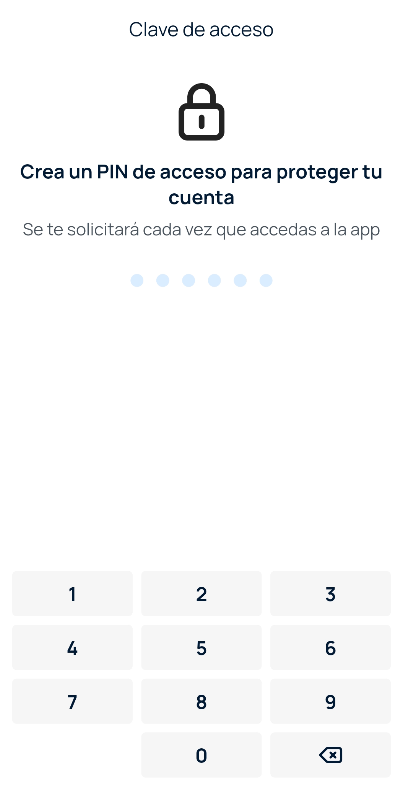
- In the Create your PIN field, enter a 6-digit code.
- Next, you'll be asked to confirm the PIN you created.
2. I forgot my PIN
If you don't remember your PIN when the app or website asks for it, you can reset it by logging out and creating a new one. The process is the same for both the web and the mobile app:
- Log out. Your session will be closed, and you'll be redirected to the login screen.
- Choose the option Forgot your PIN?.
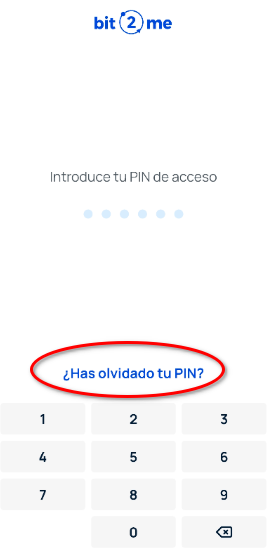
3. Next, the screen below will open, and you'll need to click the button "Log in with username and password".
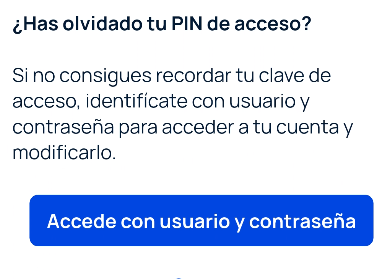
4. Follow the PIN creation flow detailed in the section Creating your PIN for the first time.
3. Change your PIN
If you already have a PIN set up and wish to change it, you can do so by following the steps outlined in section 2 - I forgot my PIN.
IMPORTANT: For security reasons, the access PIN is mandatory and cannot be disabled. If you have trouble setting up or renewing your security PIN, you can contact our support team by sending us a Ticket.
Was this article helpful?
That’s Great!
Thank you for your feedback
Sorry! We couldn't be helpful
Thank you for your feedback
Feedback sent
We appreciate your effort and will try to fix the article