Before you can start buying and selling cryptocurrencies on our platform, you need to register by following these steps:
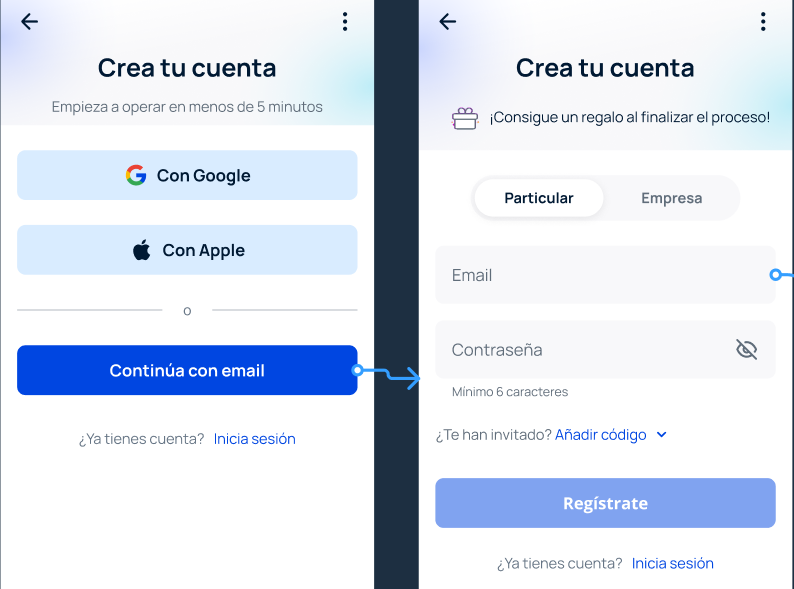
- Access Bit2Me via the mobile app or through the website. If you're accessing via the website, click on the Register button found in the page header.

- You can register by automatically linking your email address by clicking on the option to register with Google or Apple, or manually enter the email address you wish to register with and a personal, secure password by clicking on the Continue with email button. Select whether the account you are registering is Personal or Business and confirm by clicking on Register .
- Read the terms and conditions carefully and click on the I accept the terms and conditions button to continue with the registration process.
- Upon accepting the terms and conditions, an email will automatically be sent to the email address you registered with to verify and confirm it. Go to the inbox of your registered email and confirm the registration by clicking on the Confirm email button. If you do not receive the email after several minutes, please check your email's Spam or Promotions folders.
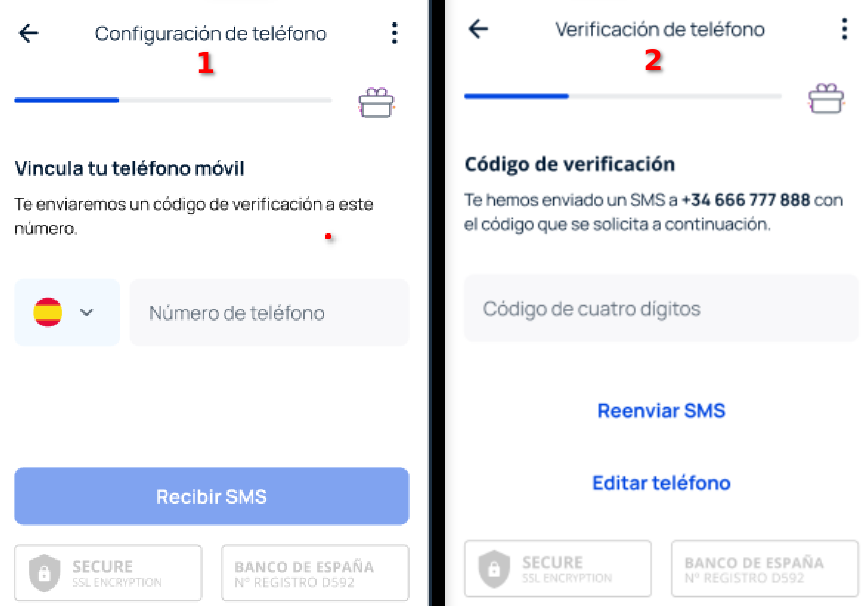
- Once your email is verified, you need to link your mobile phone. Click on the dropdown to select your country code and then enter your phone number. Press the Receive SMS button to receive a four-digit verification code on your mobile and enter it in the corresponding field. Once recognized by the system, your phone will be verified.
- On the next screen, you will be asked for your residence details. You need to provide: Nationality, country of habitual residence, and residential address. Once you have entered this information, click on Continue .
- Next, you will be asked for your personal details , which you need to register in each section: First name, First surname, Second surname, and date of birth. Click on Continue .
- On the following screen, you need to provide your identification document details with which you will register: Document issuing country, document type, document number, and expiry date. Click on Continue .
- In the last part of the questionnaire, you will need to provide information about your account, which is requested to enhance your account's security. Complete the questionnaire and click on Continue .
- The last step is identity verification. Carefully read the instructions on the first screen and click on Verify my identity :
- If you are performing the verification from a computer, you must continue the process from a mobile device by scanning the QR code that will appear on the screen.
- If you are doing it from a mobile device, you can continue directly. Don't forget to grant camera access to your device and follow the indicated steps to complete the verification. We explain how to take the photos for registration step-by-step by clicking here.
- If you are performing the verification from a computer, you must continue the process from a mobile device by scanning the QR code that will appear on the screen.
Congratulations! You are now a Bit2Me user! After registering, you are one step closer to cryptocurrencies.
TIPS : Create a strong and secure passwordBit2Me Wallet is a very secure wallet where you can store your cryptocurrencies and manage them as you wish. However, this security also depends on you using a strong and secure password for your account. Therefore, we recommend that you consider the following criteria for your password:
|
Why verify your Bit2Me account?
At Bit2Me, we comply with all European Union legal requirements for our operations, which includes a comprehensive KYC (Know Your Customer) service and a strong strategy to prevent money laundering (AML). This is why we have a personal data verification service that you can complete in three simple steps.
Was this article helpful?
That’s Great!
Thank you for your feedback
Sorry! We couldn't be helpful
Thank you for your feedback
Feedback sent
We appreciate your effort and will try to fix the article